
How to sort thousands of files without losing a weekend.
Say your Downloads folder has 4,000 files, and a file browser won’t fix that. Here’s the method that actually clears it, and the app built to make each step fast.
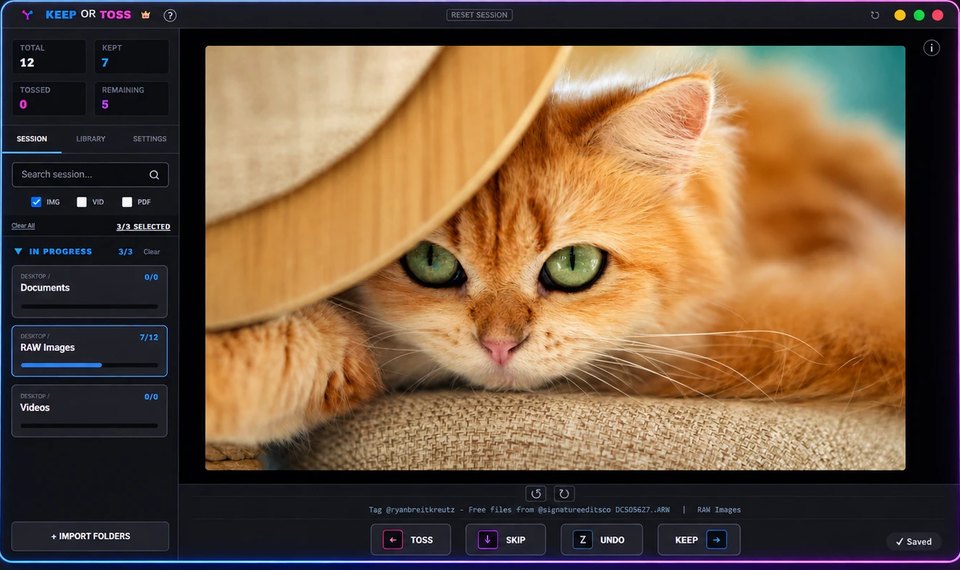
No account needed. Your files stay on your computer.
A grid doesn’t make the decision for you.
Folder grids and thumbnail views let you see everything at once, but they don’t make you finish. Nothing forces a decision, so the pile grows while the hard ones wait.
It’s decisions, not folders.
Moving a file to the right folder is two decisions: keep or toss, and where it goes. In a file browser that means dragging, renaming, and picking between “Photos 2023” and “Photos (old)” at 11pm.
Keep or Toss makes both with one keystroke or one click: keep, toss, or send it to a folder you set up in advance.
Decide fast.
Look once and choose immediately — keep, toss, or send — instead of turning one file into a research project.
A clearly blurry photo or an obvious duplicate: toss. A clean shot you’ll actually use: keep.
Skip the hard ones.
Not sure yet? Skip sends it to the back of the queue instead of stalling the whole session.
A duplicate-looking screenshot, an unclear scan, a photo you can’t quite place — skip it and move on.
Review skips last.
By the time skips come back around, the easy calls are done and the rest get easier too.
A second look is usually enough once the obvious keeps and tosses are already out of the way.
Set a time box.
Work in 20-minute rounds; progress saves, so stopping costs nothing.
A big box of old scans is best done over several short rounds.
Photos: decide on the first look.
Your first reaction is usually right. Keep or Toss shows one photo at a time, shortcuts already active, so you act on it. Not sure? Skip — it comes back around.
A sunset shot and five nearly-identical ones: keep the sharpest, toss the rest.

Clips: watch just enough.
You don’t need to watch the whole thing. MP4, MOV, and WEBM play right in the viewer, so you decide the moment you’ve seen enough — then keep, toss, or send it on.
A ten-minute screen recording where only twenty seconds mattered: watch just enough to decide, then keep, toss, or send.

Documents: ask if you’d miss it.
A scanned statement from five years ago rarely needs a careful read. PDFs open in the same viewer, so the question is quick: would you miss this if it were gone?
A five-year-old utility bill, a boarding pass from a trip you remember fine without it: toss.
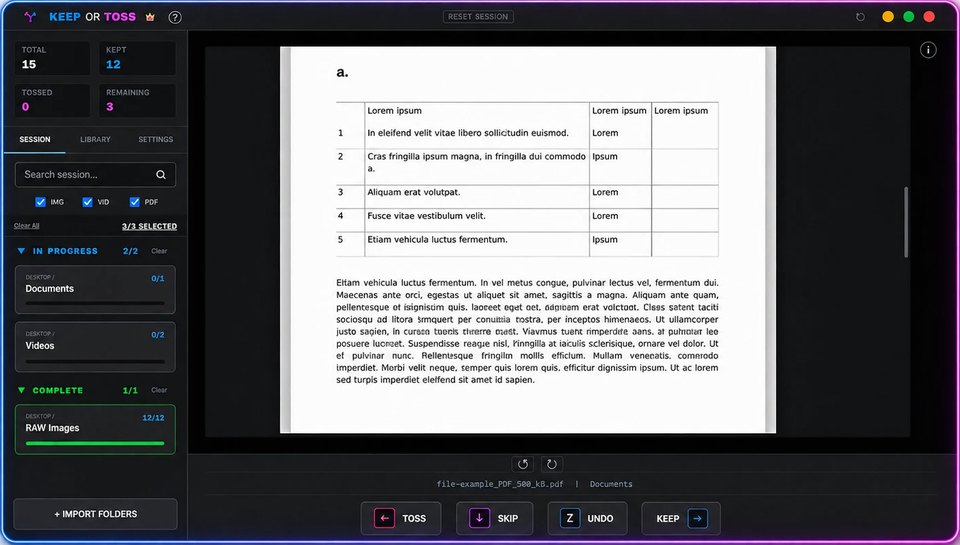
Every backlog is really one of three piles.
The Downloads folder
What’s in it: PDFs you opened once, screenshots, a few photos that landed there by accident — installers and other files just sit there; Keep or Toss only shows what it can open.
Toss first: duplicate downloads, anything with “(1)” in the name, PDFs and screenshots you don’t need anymore.
Skip: anything you don’t recognize by filename alone — open it first.
Keep: the handful of documents you actually reference.
A camera card or phone export
What’s in it: real photos and video mixed with screenshots, burst shots, and test shots.
Toss first: blurry or duplicate shots from a burst, screen recordings of nothing.
Skip: the ones you’re not ready to judge yet.
Keep: the shot you’d actually print or send.
A box of old scans
What’s in it: statements, receipts, forms, the occasional thing that actually matters.
Toss first: anything with a due date years past, anything you could re-request if needed.
Skip: anything with a retention question — set those aside.
Keep: tax records, ID documents, anything irreplaceable.
Send-to folders do both at once.
Set up to seven folders of your own, each with its own key. Press that key, or click it, while sorting and the file moves there immediately — it still counts as a keep, so your progress keeps moving. One key sends invoices to Finance, another sends family photos to Albums, a third sends client work wherever it needs to go. It’s separate from keep and toss, not a replacement — somewhere specific to send instead of your general library. Available on every tier.
The app, in one short list.
Keep, toss, skip, or send to a folder of your own — keyboard or mouse, whichever you reach for. Every decision can be undone during the session. Tossed files move to a folder instead of disappearing outright, so a change of mind costs nothing, and progress saves as you go, so a session can stop and resume without losing your place. A live count shows what’s left, so you can see the pile shrink. Download for Windows or see pricing.
Add folders from any drive — internal, external, or an SD card still in the reader — and they become one continuous queue. Progress saves as you go, so closing the app, on purpose or not, never costs you your place.
Tossed files move to a folder named .KeepOrToss_deleted inside the same folder — nothing leaves your computer, and nothing is gone until you empty it yourself.
That’s the whole method — now let the app do the work.
One-time purchase from $4.99. No subscription.
Frequently asked
What file types can Keep or Toss sort?
Images (PNG, JPG, WEBP, GIF, HEIC/HEIF), video (MP4, WEBM, MOV) and PDFs. Essential unlocks one of these categories, Plus unlocks two, and Pro unlocks all three. RAW formats (ARW, CR2, CR3, NEF, DNG, RAF, ORF) are included on Pro.
Does it delete my files?
No. A tossed file moves to a folder named .KeepOrToss_deleted inside the folder you’re sorting. It stays there until you empty it yourself.
Can I undo a decision?
Yes, decisions can be undone during the session.
Does it work on external drives or offline?
Yes to both. Processing is local and nothing is uploaded. Folders from internal drives, external drives, or SD cards can go in the same queue.
Do I need an account or a subscription?
No account, and no subscription — it’s a one-time purchase.
Which operating system does it run on?
Windows, and macOS 11 or later on Apple Silicon Macs. Intel Macs are not supported.