
How to clean up your Downloads folder.
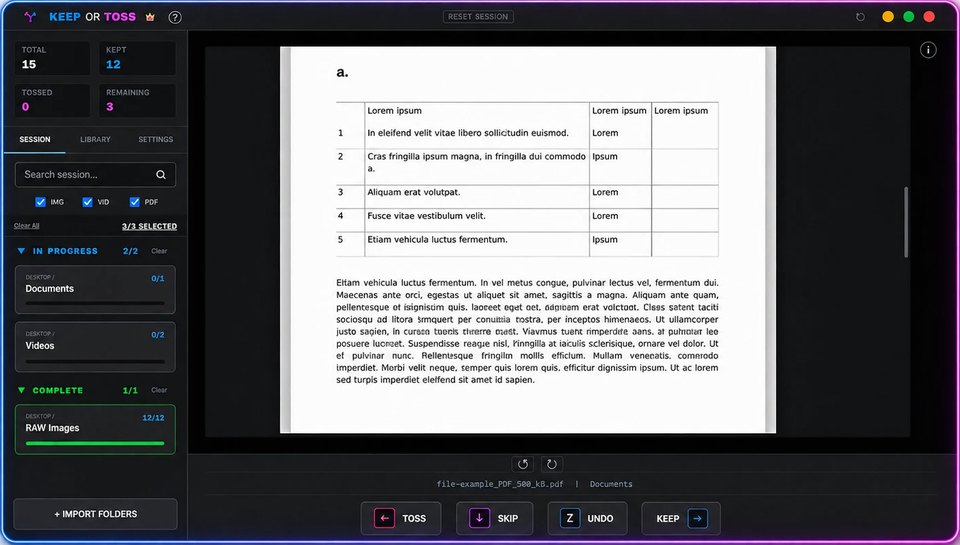
Say 4,000 files you never decided on, and half of them you don’t remember downloading. Keep or Toss takes you through the photos, videos and PDFs in your Downloads folder one at a time, so the pile you actually look at clears.
No account needed. Your files stay on your computer. This guide is about the files already in your Downloads folder, not your browser history.
Files arrive faster than decisions.
Every browser download, every screenshot, every PDF someone emailed you lands in the same folder, and nothing forces a choice about any of it. The folder just keeps growing until opening it feels like a chore instead of something quick.
Clear the clutter first.
Sort the folder by type in File Explorer and delete the installers and zips you’ve already run. Keep or Toss goes through photos, videos and PDFs, so those get cleared first, by you.
An old browser installer, a zip you already extracted: gone before the real pass even starts.
Go through what’s left.
Photos, videos, and PDFs go one at a time — keep, toss, or skip.
A screenshot you took to remember a price or a code: if you’ve used it, toss it.
Skip what you can’t place.
Come back to the skips once the easy calls are already done.
A PDF with no obvious title is a textbook skip — open it later, once the pile is smaller.
Send keepers to their real home.
A dedicated key for Finance, Photos, or Work files it the moment you decide.
A receipt goes to Finance the moment you see it — no separate filing pass later.
Keep up with a short weekly pass.
A folder that’s mostly empty stays easy to clear again next time.
A handful of new downloads is a much smaller job than a folder that’s been ignored for months.
Receipts you may need for taxes or a warranty claim later.
Documents you actually refer back to, not just ones you meant to read.
Photos you’d actually want to find again.
Duplicate downloads — the same file saved twice under different names.
Old screenshots that already did their job.
Outdated versions of a file you’ve since replaced.
Your keepers go straight to where they belong.
Set up to seven folders of your own, each with its own key or click. One sends invoices to Finance, another sends school forms to Family, a third wherever else you need — the file moves the moment you decide, available on every tier. It’s separate from keep and toss: a place for files that need to go somewhere specific.

A tossed file moves to a folder named .KeepOrToss_deleted inside the same folder — nothing leaves your computer, and nothing is gone until you empty it yourself.
What a cleared Downloads folder looks like.
- ✓ Installers and zips gone
- ✓ Duplicate downloads gone
- ✓ Photos and documents filed where they belong
- ✓ A short list of true keepers instead of an endless scroll
- ✓ Empty enough that next week’s pass is easy to keep up with

A Downloads folder you can actually open again.
One-time purchase from $4.99. No subscription.


Frequently asked
Does it delete my downloads?
No. A tossed file moves to a folder named .KeepOrToss_deleted inside the same folder. It stays there until you empty it yourself.
Can I undo a decision?
Yes, decisions can be undone during the session.
Which file types does it go through?
Images, video and PDFs are three categories: Essential unlocks one, Plus two, Pro all three. RAW formats (ARW, CR2, CR3, NEF, DNG, RAF, ORF) are included on Pro.
Do I need an account or a subscription?
No account, and no subscription — it’s a one-time purchase.
Which operating system does it run on?
Windows, and macOS 11 or later on Apple Silicon Macs. Intel Macs are not supported.